
Voicemail User Guide
Viewing Voicemails
- This icon at the top of your phone screen will show you that you have a voicemail(s).
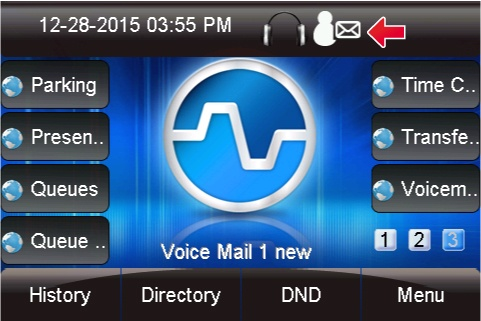
- Press the Voicemail button.

-
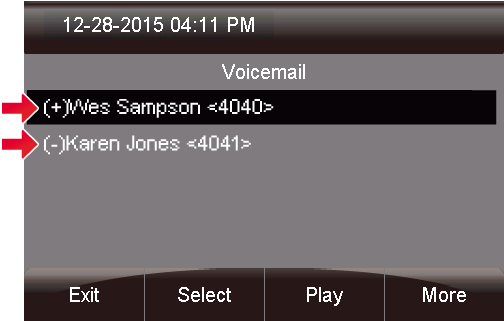
- A (+) in front of the message indicates the message is new.
- A (-) in front of the message indicates the message is old.
From here you can quickly see who left you voicemails and choose which messages to listen to first.
Listening to Voicemails
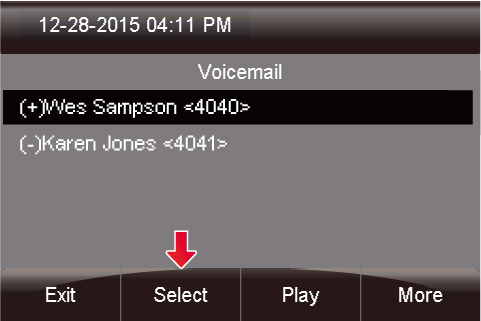
- You can press Select to find out more information about the voicemail message that was left.
-
- Name and number of who left the message.
- Length of voicemail message.
- Date the message was left.
- Time of day the message was left.
The following will be displayed on this screen: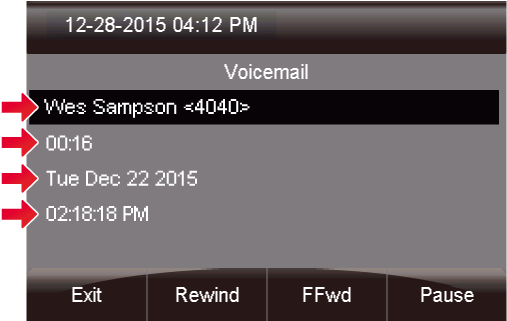
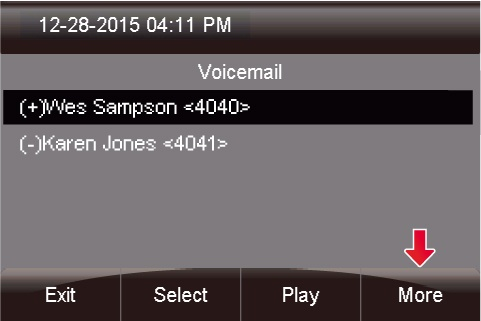
- If you pres the More button, additional options will appear.
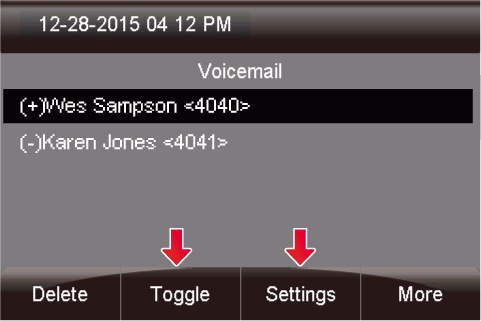
- You now see options to Toggle this voicemail from unread to read or vice versa, and an option to edit Settings.
- Lastly, you can press the Play button to listen to your voicemail.
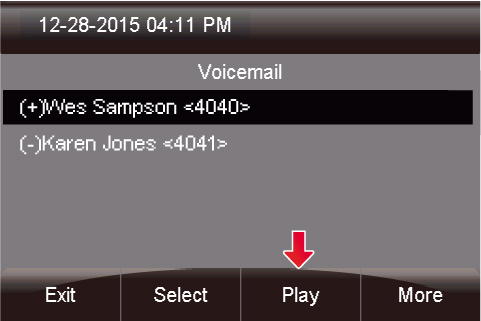
- The message will now play over your device.
Voicemail Administration
To access all of the voicemail administration options, you can follow these steps.
If you wish to record any specific greetings, please pick up the handset before entering in to the voicemail menu
- Press the Voicemail button.
- Press the 'Settings' button
Change Voicemail Password
Once in settings, select the 'Change Password' Option
Change Voicemail name
To have a generic system greeting with only your name, you can change your system voicemail name by selecting 'Name' and then 'Change'
Change Custom Voicemail Greetings
The system allows for 3 different custom voicemail greetings:
To change any of these greetings, once in the settings screen, select the greeting type and then select 'Change'. This will play a beep in your ear and you can begin recording. Once complete, select the save recording option on-screen. Follow the prompts if you wish to make changes.