# Zulu Chat

### Joining a Chat

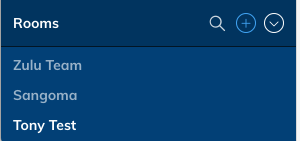
<div id="bkmrk-at-the-bottom-of-you">- At the bottom of your Zulu Client is a list of all the Chat Rooms you are currently a member of  
    ![](https://docs.amscomp.com/uploads/images/gallery/2019-05-May/scaled-840-0/image-1556725608374.png)
- You can click on the ![](https://docs.amscomp.com/uploads/images/gallery/2019-05-May/scaled-840-0/image-1556725613033.png)
    
     to search for rooms to join
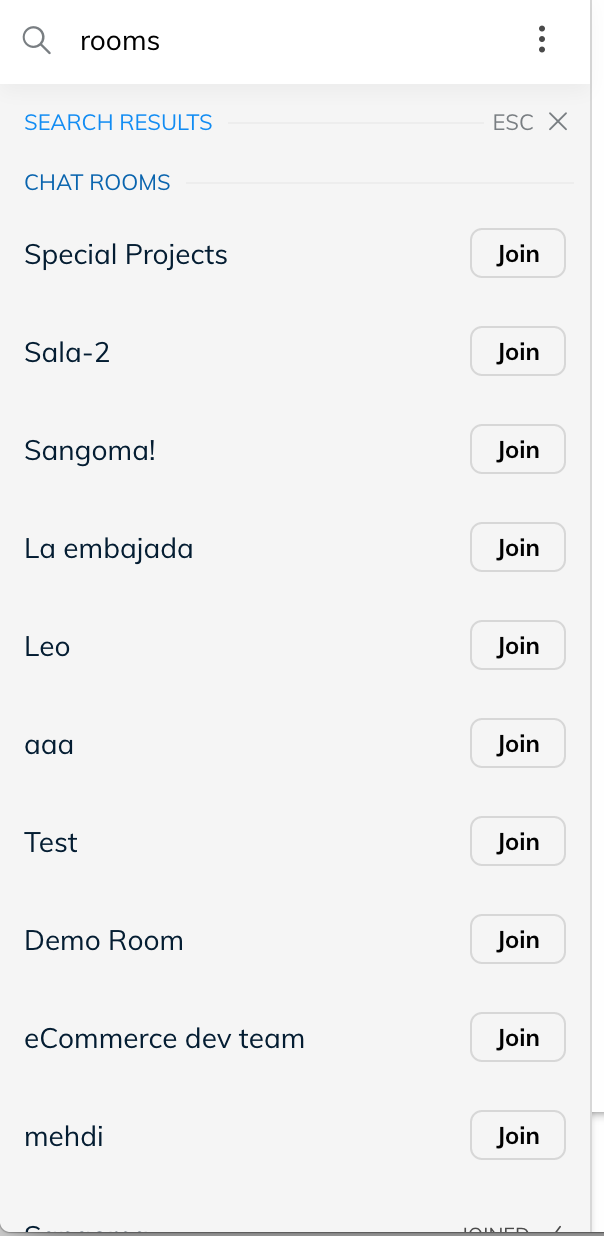
- You will now be shown a list of Chat Rooms that you are allowed to join  
    ![](https://docs.amscomp.com/uploads/images/gallery/2019-05-May/scaled-840-0/image-1556725626529.png)
- Click the Join button to become a member of that room.

</div>## Chatting with users inside a chat room

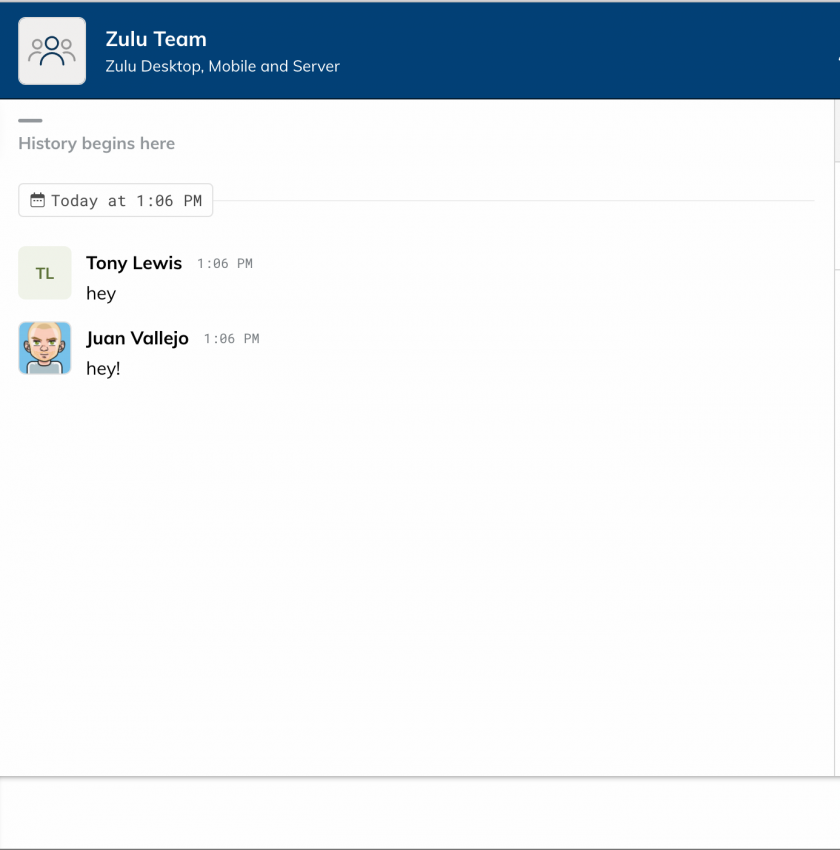
<div id="bkmrk-within-a-chat-room-t"><div><div><div><div>- Within a Chat Room that you are a member of you can chat with everyone inside the room and see a full history of the interactions of the room.  
    ![](https://docs.amscomp.com/uploads/images/gallery/2019-05-May/scaled-840-0/image-1556725684681.png)

</div></div></div></div></div>## Viewing Members

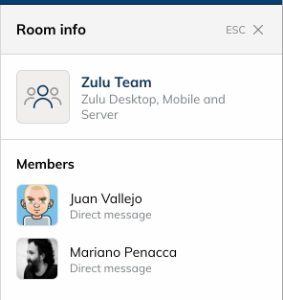
<div id="bkmrk-to-view-all-the-memb"><div><div><div><div>- To view all the member of the room who are currently logged in you can press the Room Info button on the top right of your Zulu Client when inside a Chat Room  

    ![](https://docs.amscomp.com/uploads/images/gallery/2019-05-May/scaled-840-0/image-1556725689760.png)
- From here you will see a list on the left of all the members of the Chat Room who are currently logged in.  
    ![](https://docs.amscomp.com/uploads/images/gallery/2019-05-May/scaled-840-0/image-1556725694635.png)

</div></div></div></div></div>## Leaving a Chat Room

<div id="bkmrk-from-within-the-chat"><div><div><div><div>- From within the Chat Room you can click on the Exit button at the top right of your Zulu Client to leave the Chat Room  

    ![](https://docs.amscomp.com/uploads/images/gallery/2019-05-May/scaled-840-0/image-1556725699379.png)

</div></div></div></div></div>## Getting the Attention of a User (Notifications and Mentions)

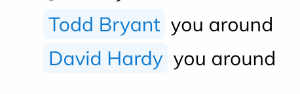
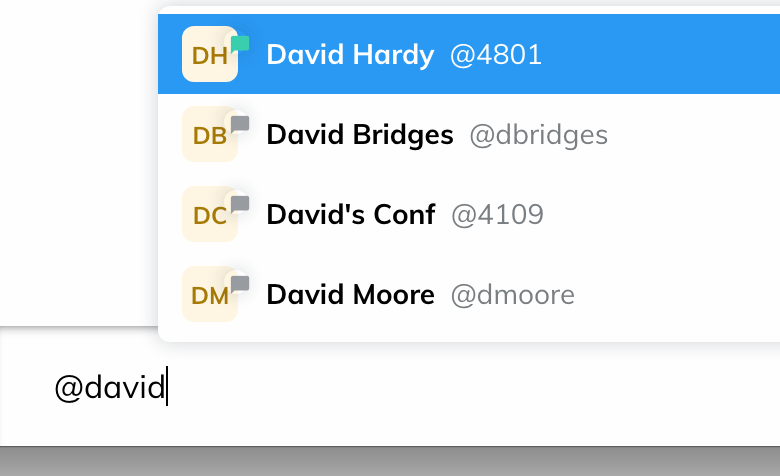
<div id="bkmrk-zulu-chat-uses-the-c"><div><div><div><div>- Zulu chat uses the concept of Mentions. A mention is away of getting the attention of a user within a chat room and that user receiving a notification of the chat room.
- Inside the chat room you would type in a message such as "@dhardy you around for a call" to send a notification to user dhardy.  
    ![](https://docs.amscomp.com/uploads/images/gallery/2019-05-May/scaled-840-0/image-1556725703864.png)


    ![](https://docs.amscomp.com/uploads/images/gallery/2019-05-May/scaled-840-0/image-1556725712296.png)
- The user will get a notification that they were mentioned inside the chat room and if they are not a member of the chat room it will notify them of the message and ask them to join the room at the same time.

</div></div></div></div></div>### Creating a New Chat Room

<div id="bkmrk-inside-zulu-you-can-">- Inside Zulu you can chat with other contacts on your PBX and also create Chat Rooms that users can join and take part of group conversations.
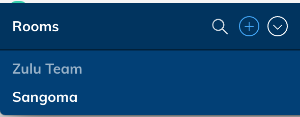
- To create a Chat Room from your Zulu Client click on the Rooms ![](https://docs.amscomp.com/uploads/images/gallery/2019-05-May/scaled-840-0/image-1556725751125.png)

    
     sign Section at the bottom of your zulu client  
      
    ![](https://docs.amscomp.com/uploads/images/gallery/2019-05-May/scaled-840-0/image-1556725766511.png)
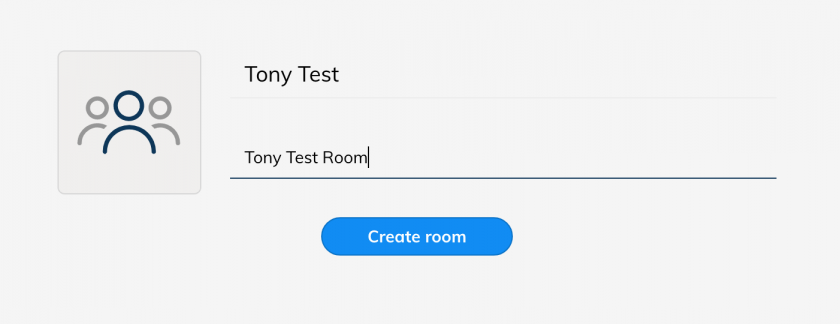
- Provide a Room Name and Description and press the Create Room button  
    ![](https://docs.amscomp.com/uploads/images/gallery/2019-05-May/scaled-840-0/image-1556725770484.png)
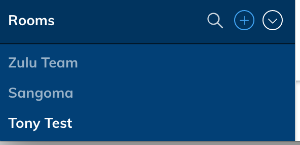
- You will now see the room has been added to the list of Rooms on your Zulu client and other users can now join the room.  
    ![](https://docs.amscomp.com/uploads/images/gallery/2019-05-May/scaled-840-0/image-1556725774716.png)
- For more information on how to send a notification to users to join the room see this wiki

</div><div id="bkmrk-"><div><div><div></div></div></div></div>