# Voicemail User Guide
## Viewing Voicemails
- This icon at the top of your phone screen will show you that you have a voicemail(s).
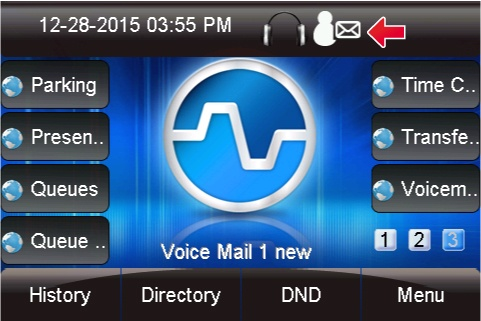
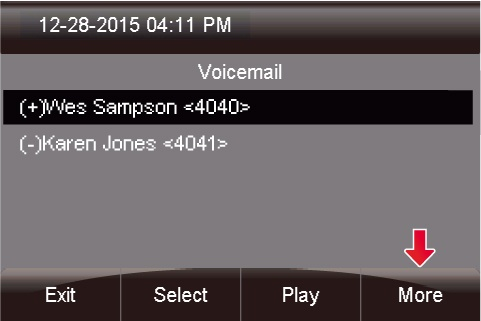
- Press the **Voicemail** button.

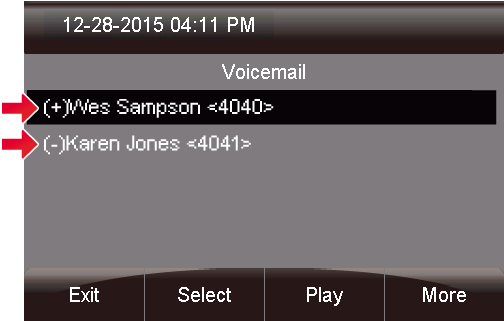
- - A **(+)** in front of the message indicates the message is new.
- A **(-)** in front of the message indicates the message is old.
From here you can quickly see who left you voicemails and choose which messages to listen to first.
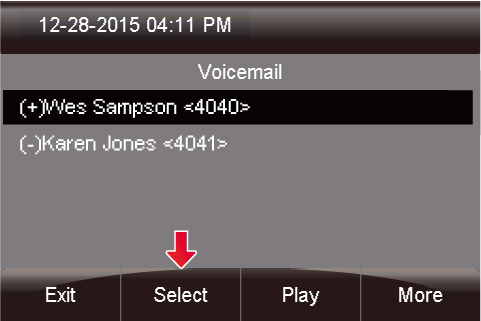
- You can press **Select** to find out more information about the voicemail message that was left.
- - Name and number of who left the message.
- Length of voicemail message.
- Date the message was left.
- Time of day the message was left.
The following will be displayed on this screen: 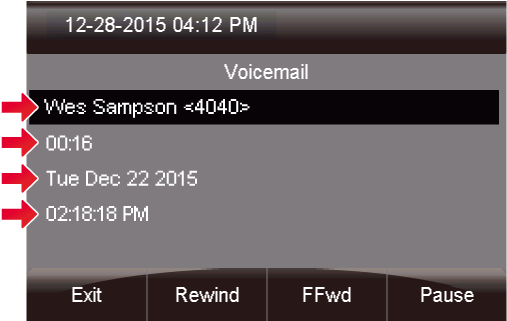
- If you pres the **More** button, additional options will appear.
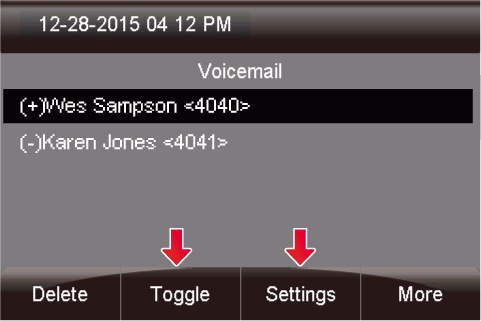
- You now see options to **Toggle** this voicemail from unread to read or vice versa, and an option to edit **Settings**.
- Lastly, you can press the **Play** button to listen to your voicemail.
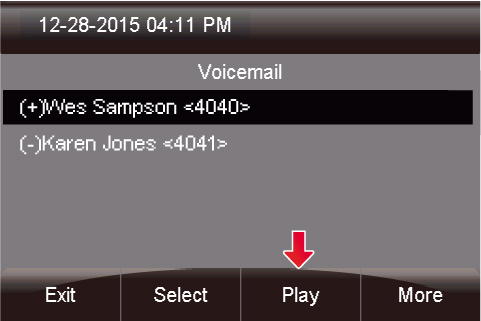
- The message will now play over your device.
If you wish to record any specific greetings, please pick up the handset before entering in to the voicemail menu
- Press the **Voicemail** button.

- Press the 'Settings' button
#### Change Voicemail Password
Once in settings, select the 'Change Password' Option
#### Change Voicemail name
To have a generic system greeting with only your name, you can change your system voicemail name by selecting 'Name' and then 'Change'
#### Change Custom Voicemail Greetings
The system allows for 3 different custom voicemail greetings:
- Unavailable - When you phone rings for the maximum number of rings without answering, this greeting will be played
- Busy - If you are sent a call, but are currently on the phone this greeting will be played
- Temporary - If set, this greeting will always be played
To change any of these greetings, once in the settings screen, select the greeting type and then select 'Change'. This will play a beep in your ear and you can begin recording. Once complete, select the save recording option on-screen. Follow the prompts if you wish to make changes.