**History** section allows you to view missed, received, and dialed calls, as well as add the number to your contacts list, blacklist the number, or call the number.
## Viewing Calls
1. Press the **History** soft key.
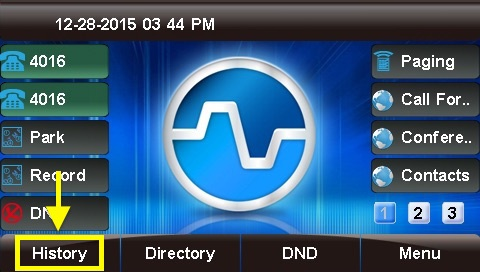
2. "All Calls" will be shown by default.
1. **= Missed**
2. **= Received**
3. **= Dialed**
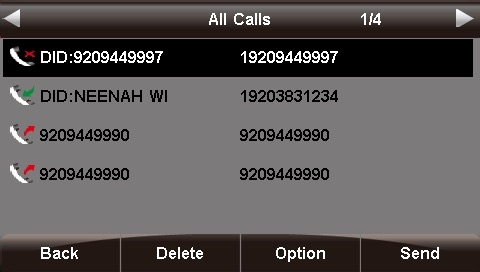
3. You can use the **<** and **>** (left and right arrow) buttons to filter by call type: **All Calls**, **Missed Calls**, **Received Calls**, and **Dialed Calls**. The current filter option is shown at the top of the screen.
## Deleting Calls Individually
1. Use the **Λ** or **V** (up and down arrow) buttons to select a call from the list.
2. Press the **Delete** soft key to remove the call from the call history.
## Options
1. Use the **Λ** or **V** (up and down arrow) buttons to select a call from the list.
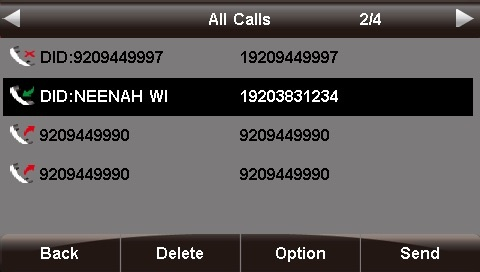
2. Press the **Option** soft key.
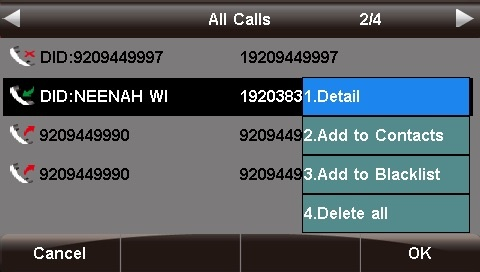
3. Use the **Λ** or **V** (up and down arrow) buttons to highlight an option, then press the **OK** soft key or the **√** (checkmark) button to select the option.
### Detail
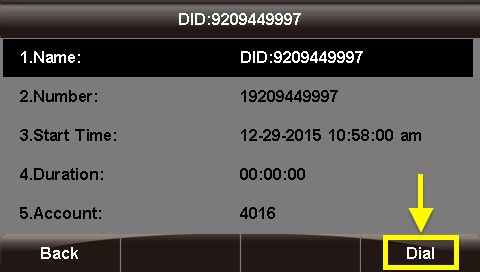
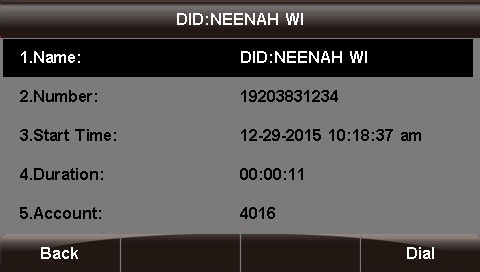
This screen provides details of the call such as **Name**, Number, Start Time, Duration, and Account.
Press the **Back** soft key to go back to the previous screen, or the **Dial** soft key to call the number shown. (You are not required to highlight the number first.)
### Add to Contacts
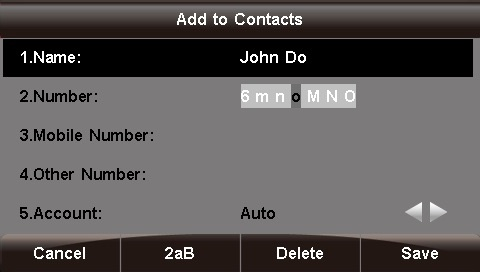
You can save contact information such as Name, **Number**, **Mobile Number**, **Other Number**, **Account**, **Ring Tone**, **Group**, and **Photo**.
1. Use the **<** **>** **Λ** **V** (arrow) buttons to navigate and the phone keypad to enter text and numbers. To cycle between the numbers/letters/symbols available for each key, press the key multiple times or use the **<** and **>** (left and right arrow) buttons. *Tip: The "space" option is found under the "0" (zero) key. You can use the **2ab** soft key to cycle among 2ab, 123, abc, and ABC, which are various input options limiting which characters can be entered.*
2. Press the **Save** soft key when done.
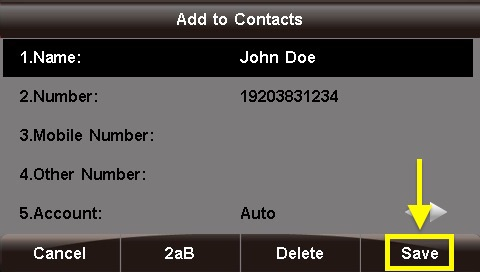
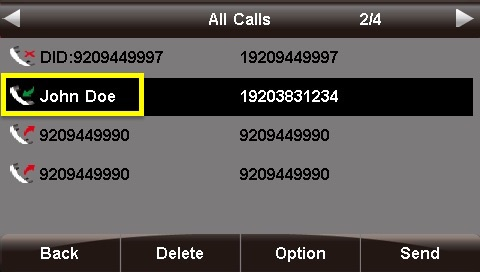
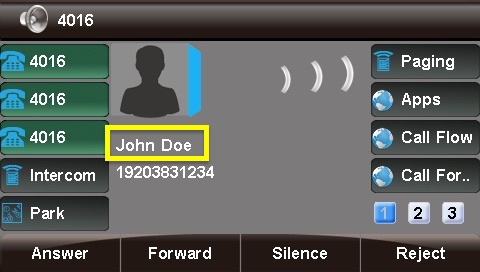
Now, any call history for this caller, as well as new inbound calls from this caller, will display the name you entered.
### Add to Blacklist
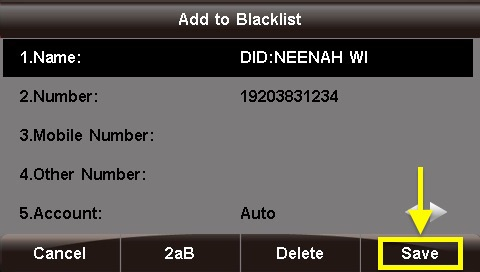
This option adds the caller to the blacklist, preventing you from receiving further calls from this caller ID.
To add the number to the blacklist, press the **Save** soft key.
### Delete All
This option deletes all of the calls associated with list that you are currently viewing (**All Calls**, **Missed Calls**, **Received Calls**, or **Dialed** Calls, as shown at the top of the screen).
*For example, if you are viewing the **Missed Calls** page, all of the missed calls would be deleted from the call history, and they will no longer show up here or on the **All Calls** page. However, the other calls (received and dialed) will still appear in the call history.*
## Dialing a Number
### From the List
1. Use the **Λ** or **V** (up and down arrow) buttons to select a call from the list.
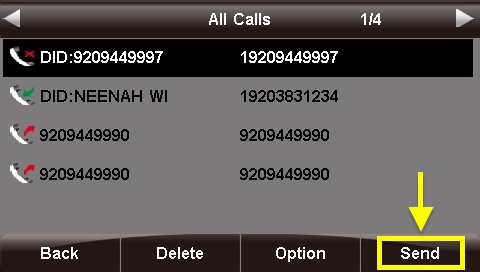
2. Press the **Send** soft key or press the **√** (checkmark) button. An outbound call will be placed immediately.
### From the Call Detail Screen
Press the **Dial** soft key or the **√** (checkmark) button. An outbound call will be placed immediately.