# Zulu Softphone
Documents on the functionality and usage of the Zulu Softphone from Sangoma.
Original documentation is found at https://wiki.sangoma.com/display/ZU/Zulu+3
# Audio Device Behaviour
Audio devices preferences can be found by clicking on preferences under the user menu:
Inside Preferences, under the Audio tab you will find device settings:
Please make sure the device you want to use is connected. If it is connected and it is configured as your default device for input/output on your OS you shouldn't need to adjust any settings, just leave as default. But if you still want Zulu to always use that specific device for input/output you should definitely select it. Zulu will save the device id and try to use it, if it is not connected it will fall back to the Default device. Please note that Zulu will only list devices that are connected, even if you have previously selected a different device (It will still be saved and used if you connect it back).
# Chrome Browser Plugin
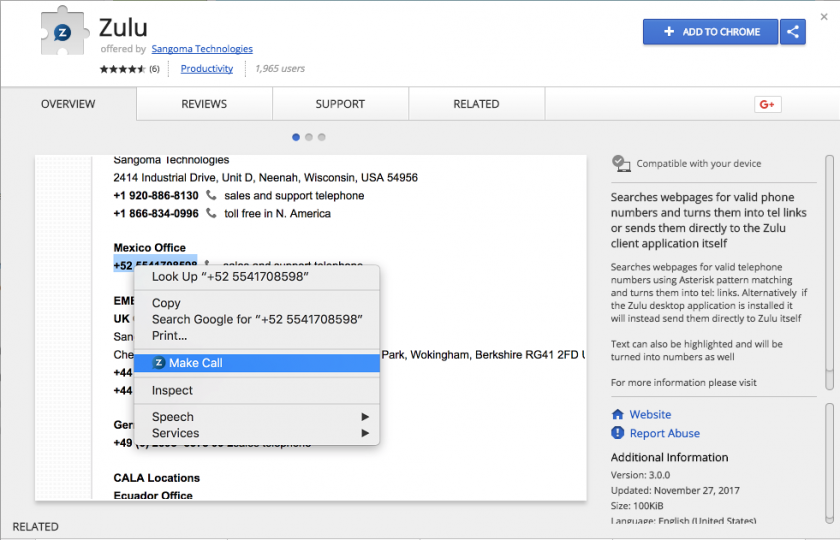
1. Using Chrome navigate to the webstore: [https://chrome.google.com/webstore/detail/zulu/idfkkpineieigiennfifkhbbcbojeoae](https://chrome.google.com/webstore/detail/zulu/idfkkpineieigiennfifkhbbcbojeoae)[
](https://chrome.google.com/webstore/detail/zulu-click-to-call-for-ch/idfkkpineieigiennfifkhbbcbojeoae)
2. Click "Add To Chrome" in the top right hand corner
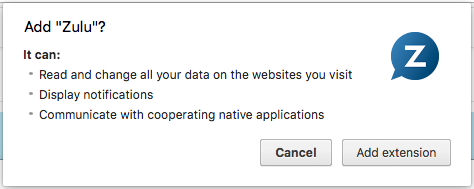
3. Click "Add extension" on the next screen
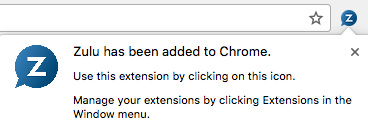
4. You will see a message after clicking "Add extension" that states the module has been installed
# Using the Zulu Desktop Client
# Installing the Desktop Client
## Download the desktop client
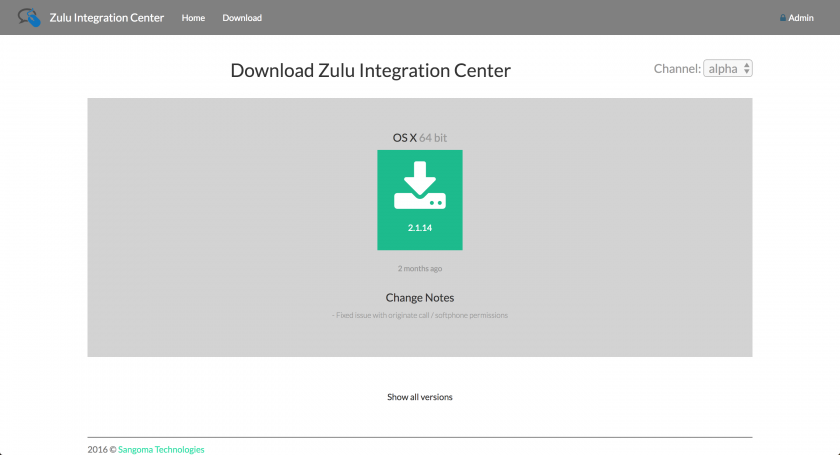
Navigate to [https://zulu-updater.sangoma.com/releases/stable](https://zulu-updater.sangoma.com/releases/stable) and download the current desktop application for your given platform.
## Install on Windows
Click the Zulu-3.x.x.exe file you downloaded.
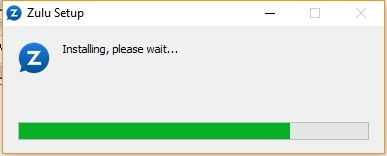
Wait while we install the applications
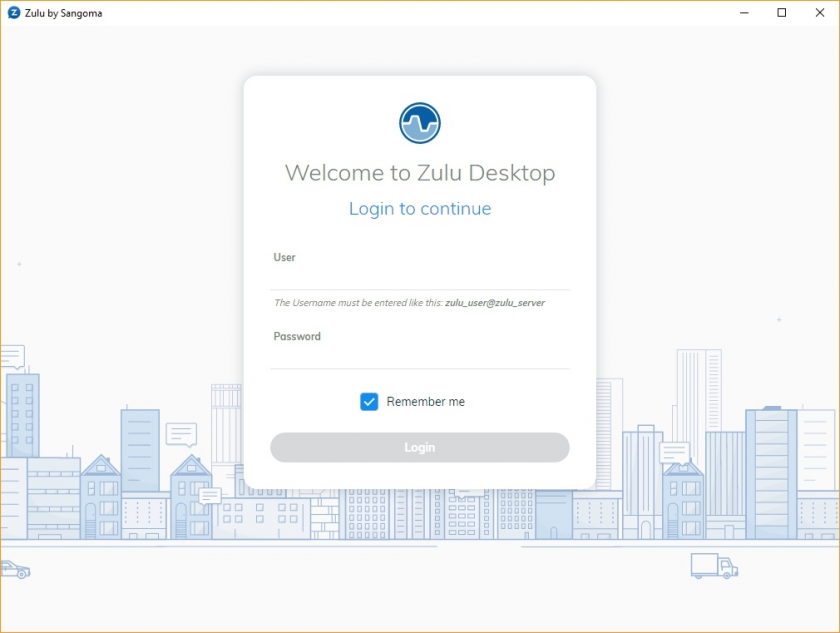
After installation it will prompt you to login.
## Install on MacOS
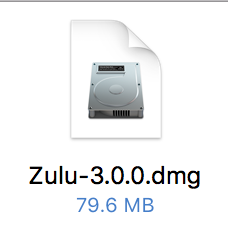
Double click on the Zulu-3.x.x.dmg file you downloaded
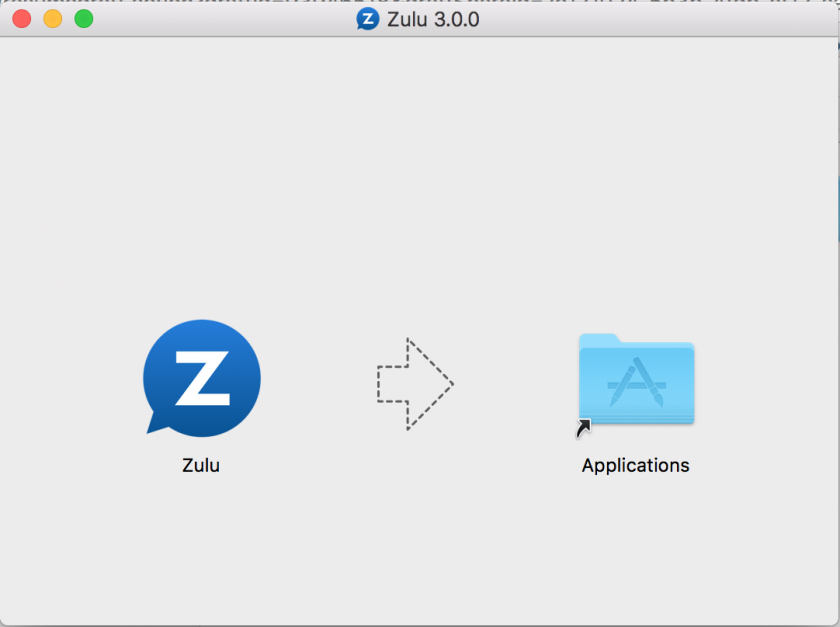
Drag Zulu into the Application Folder

Open Zulu by clicking on the Zulu icon in Launchpad
# Configuring the Desktop Client
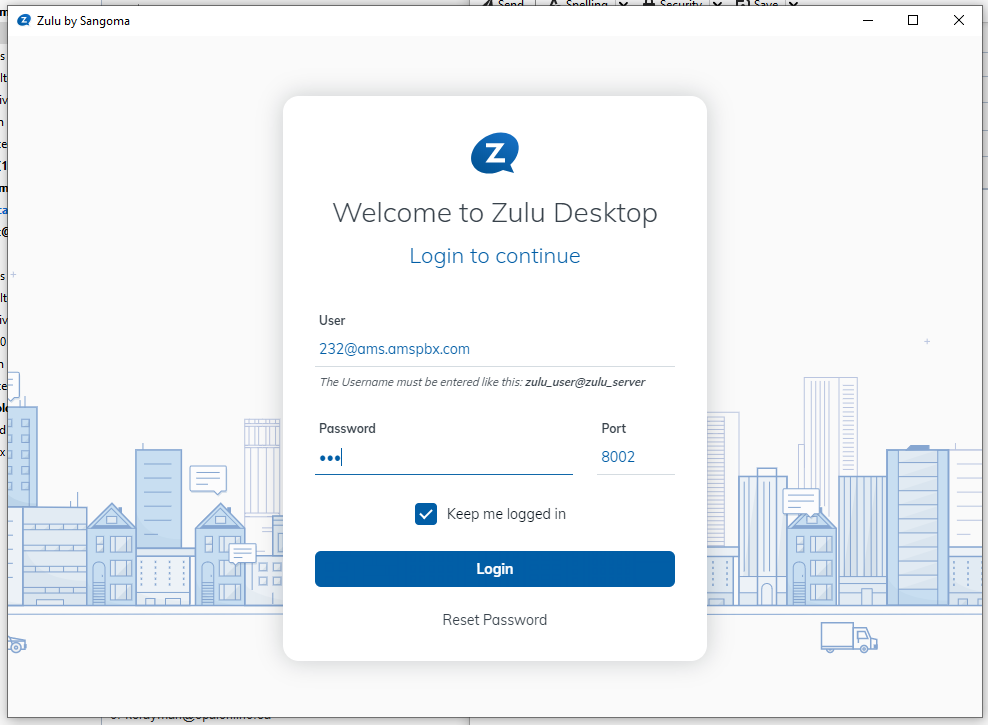
Once the desktop client is installed on your device, it will prompt you to log in. You will then be presented with the login page.
[](https://docs.amscomp.com/uploads/images/gallery/2022-12/image-1671044381416.png)
You will need to contact AMS for your User and Password info. The port will always be set to 8002.
# Streams
- Everything in Zulu 3 is done within a stream. You can see all your active streams on the left side of your Zulu Client.
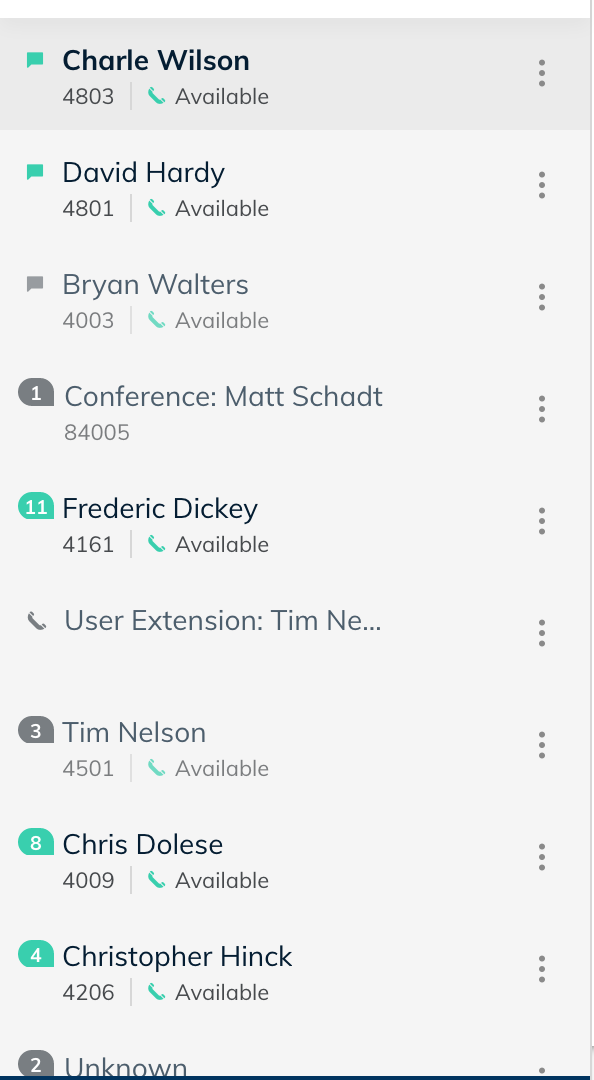
- Clicking on a Stream will bring up the past history of that stream which includes
- Chats
- Sent, Received and Missed Calls
- If call recording for your extension is enabled on the PBX all call recordings that were done with this contact will be shown here.
- Any voicemails left by this contact for you.
- Shared Files
- SMS messages
- Send and Received Faxes
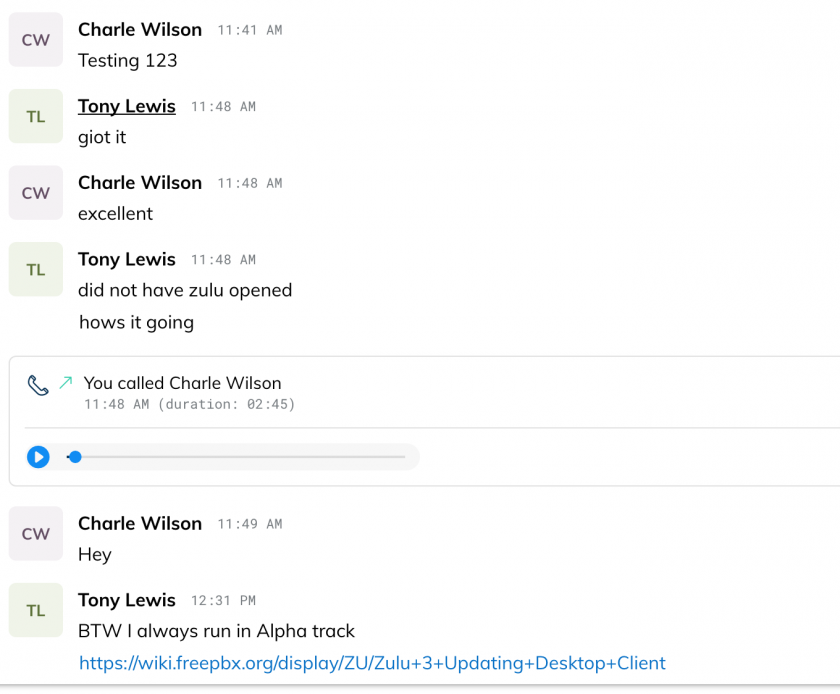
- From within the Stream you can send messages to the contact by typing a new message

- At the top of the Stream you have buttons for common things such as
- Call the Contact
- Fax the Contact
- SMS the Contact (Requires SIPStation trunking)
- Share your Screen with the Contact (Beta Currently as of 8-1-18)
- Send files to your Contact

# Zulu Chat
### Joining a Chat
- At the bottom of your Zulu Client is a list of all the Chat Rooms you are currently a member of
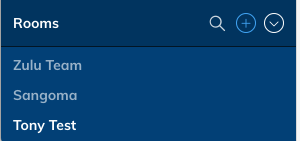
- You can click on the 
to search for rooms to join
- You will now be shown a list of Chat Rooms that you are allowed to join
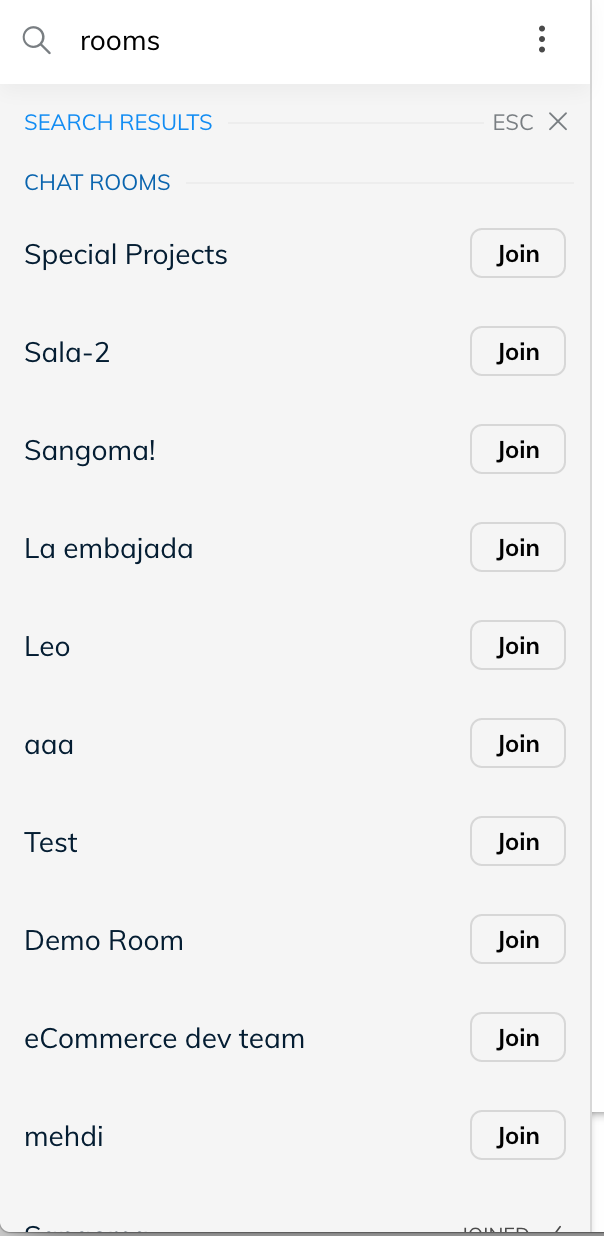
- Click the Join button to become a member of that room.
## Chatting with users inside a chat room
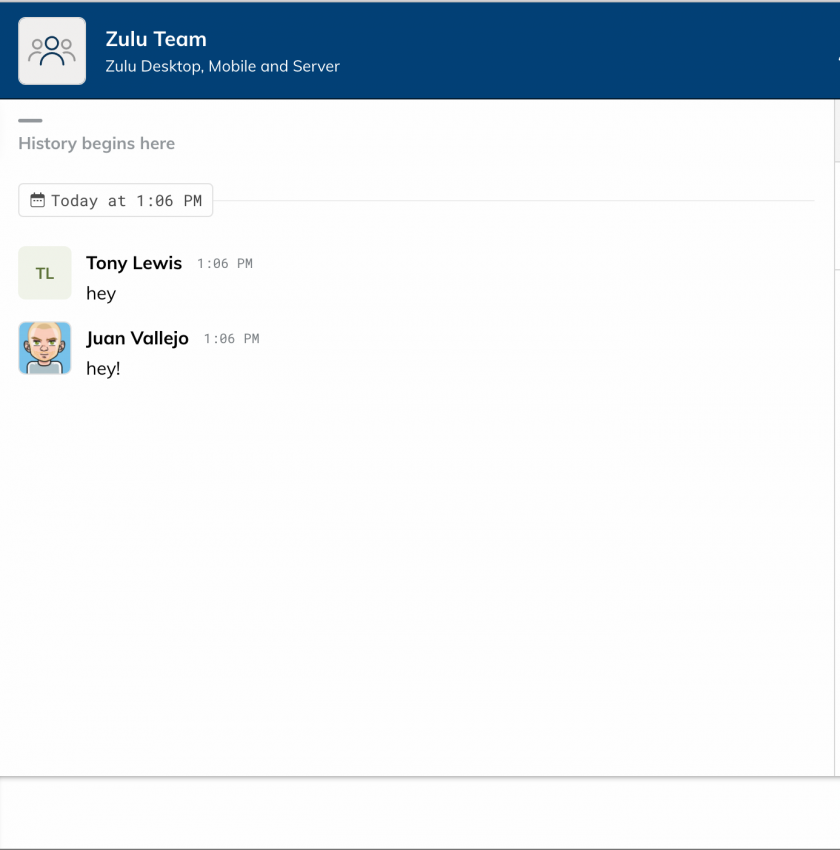
- Within a Chat Room that you are a member of you can chat with everyone inside the room and see a full history of the interactions of the room.
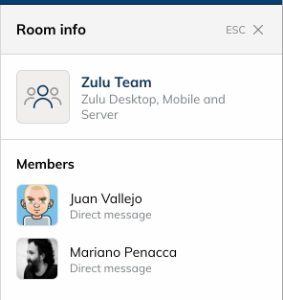
- To view all the member of the room who are currently logged in you can press the Room Info button on the top right of your Zulu Client when inside a Chat Room

- From here you will see a list on the left of all the members of the Chat Room who are currently logged in.
- From within the Chat Room you can click on the Exit button at the top right of your Zulu Client to leave the Chat Room

- Zulu chat uses the concept of Mentions. A mention is away of getting the attention of a user within a chat room and that user receiving a notification of the chat room.
- Inside the chat room you would type in a message such as "@dhardy you around for a call" to send a notification to user dhardy.
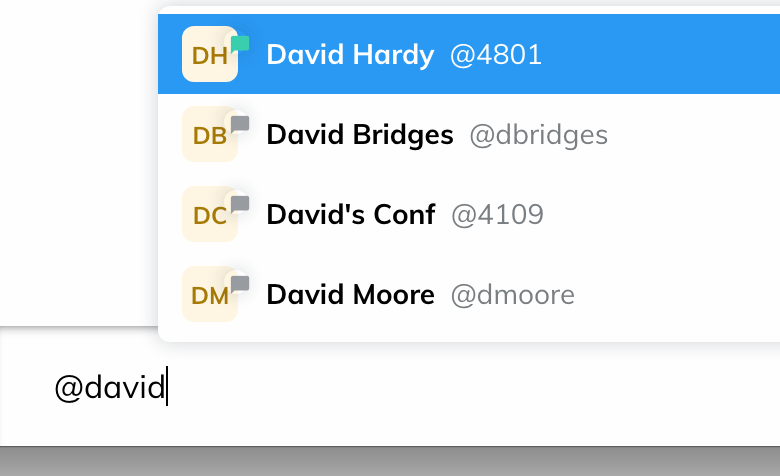

- The user will get a notification that they were mentioned inside the chat room and if they are not a member of the chat room it will notify them of the message and ask them to join the room at the same time.
- Inside Zulu you can chat with other contacts on your PBX and also create Chat Rooms that users can join and take part of group conversations.
- To create a Chat Room from your Zulu Client click on the Rooms 
sign Section at the bottom of your zulu client
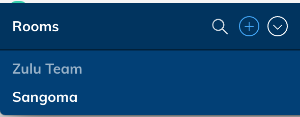
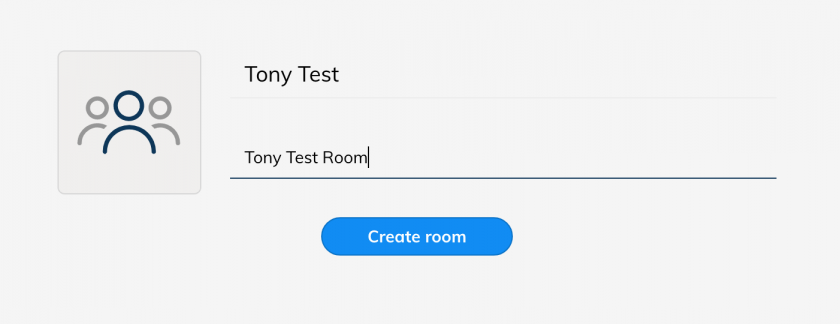
- Provide a Room Name and Description and press the Create Room button
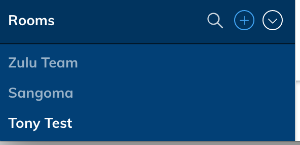
- You will now see the room has been added to the list of Rooms on your Zulu client and other users can now join the room.
- For more information on how to send a notification to users to join the room see this wiki