# QuickDial Requirements
Before being able to access QuickDial, there are a few requirements that need to be met
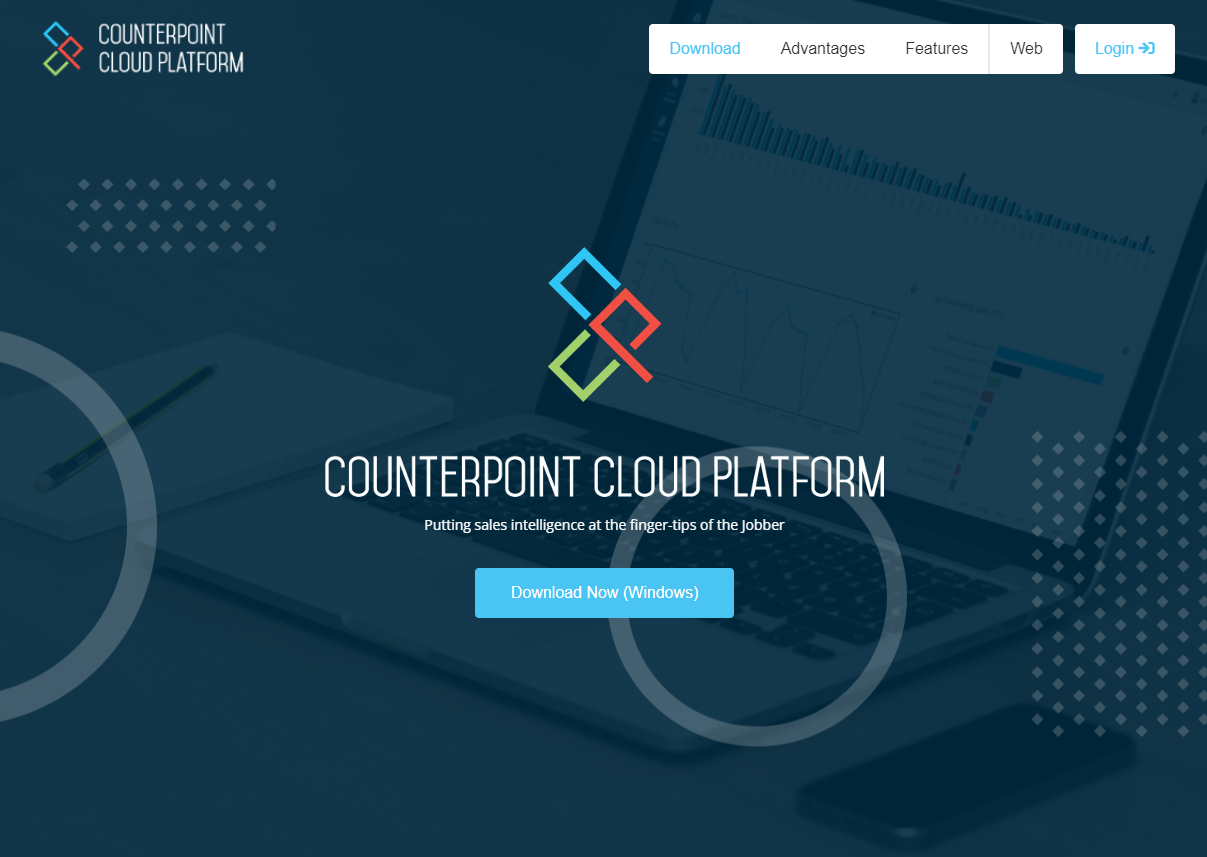
1. Download the Counterpoint Cloud Platform App from [https://counterpoint.cloud/app.php](https://counterpoint.cloud/app.php "https://counterpoint.cloud/app.php")
[](https://docs.amscomp.com/uploads/images/gallery/2022-01/image-1642017921325.png)
2. Download the current Zulu softphone app from [https://zulu-updater.sangoma.com/releases/stable](https://zulu-updater.sangoma.com/releases/stable)
3. Get Counterpoint Cloud Platform Credentials
- These can be created by a Counterpoint Cloud Platform admin, or your AMS Support Team
4. Get Zulu Credentials
- These can be provided by your AMS Support Team
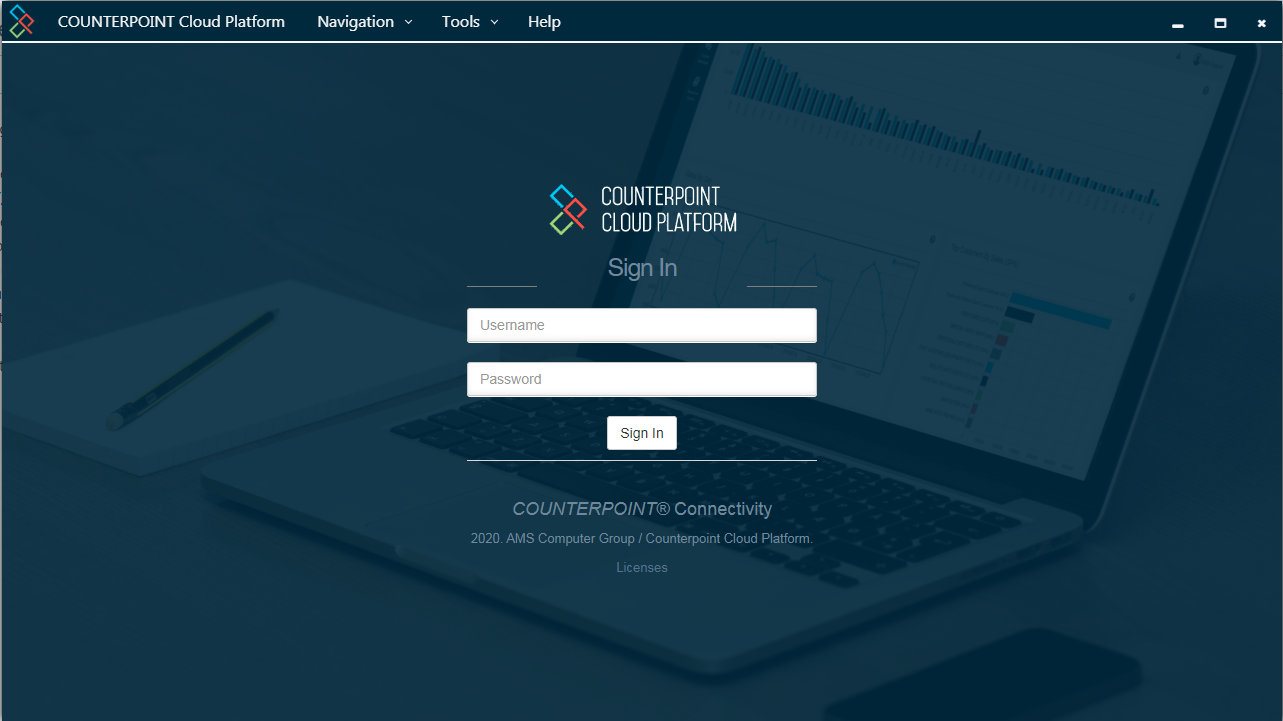
5. Open the Counterpoint Cloud Platform Desktop App and log in with your credentials Once logged into the Counterpoint Cloud Platform, you will stay logged in indefinitely
[](https://docs.amscomp.com/uploads/images/gallery/2020-09/image-1599590291766.png)
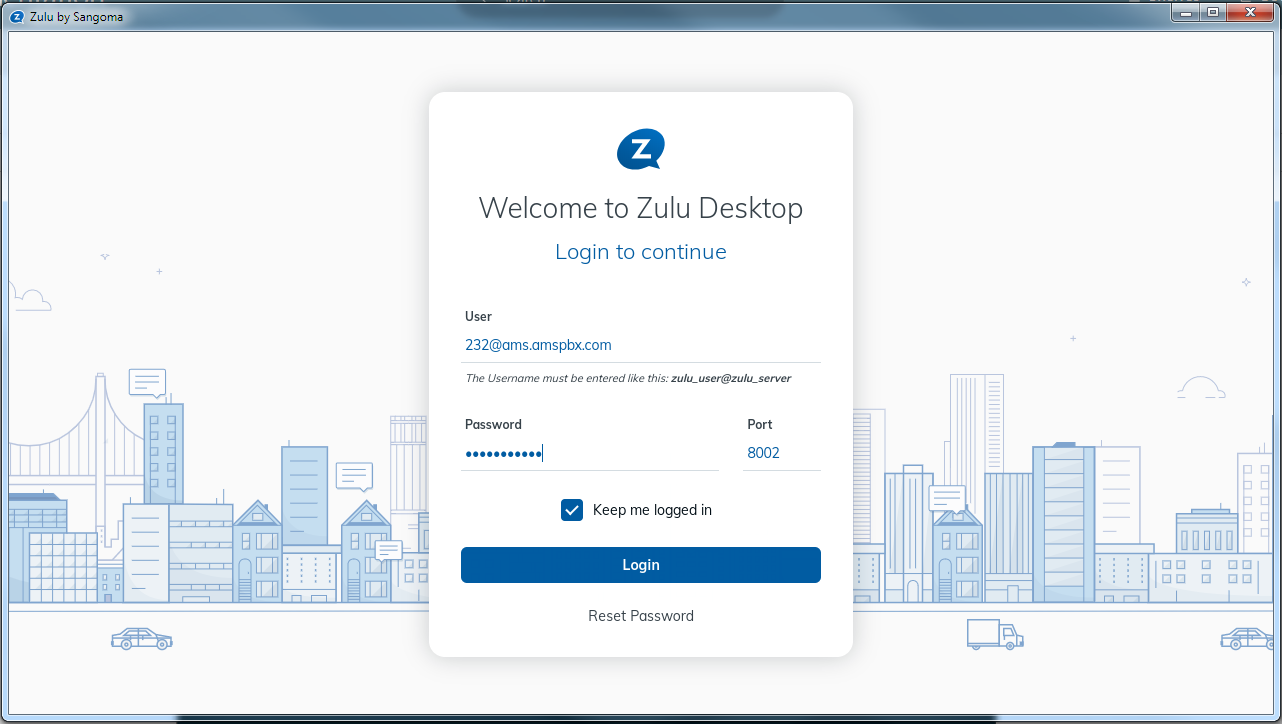
6. Log into the Zulu Desktop App - AMS will provide all required information When logging into the Zulu App, your username should be the same as your extension
[](https://docs.amscomp.com/uploads/images/gallery/2020-09/image-1599590393423.png)
7. Once you have successfully signed into both of these applications, you can begin to take calls with the QuickDial application